



Hyperlink
Instructions for use
Supports setting the Text or WideChar attribute fields as Hyperlink. After enabling the map Hyperlink, you can click on vector objects in the map to open the corresponding hyperlink properties. Hyperlinks can be defined as the following two types:
- File: Images, Excel, Word, videos, etc. When clicking on a hyperlink object, the corresponding application will be used to open the linked file.
- URL: Websites. When clicking on a hyperlink object, the default web browser will be used to open the corresponding webpage.
Application Scenarios:
- Add relevant images to specified vector objects, such as adding corresponding real photos to buildings, lakes, scenic spots, etc., and view them.
- Can be used to view detailed introduction documents of companies on the map.
Operation Instructions
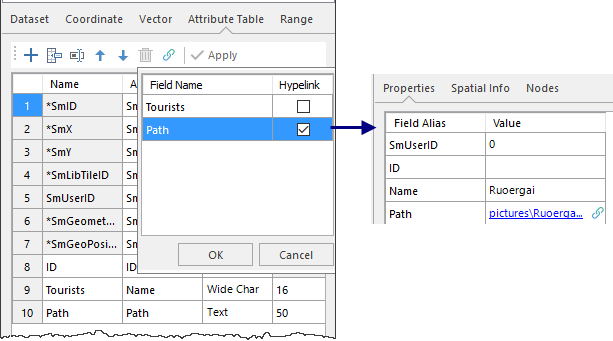 |
| Setting Hyperlink Field |
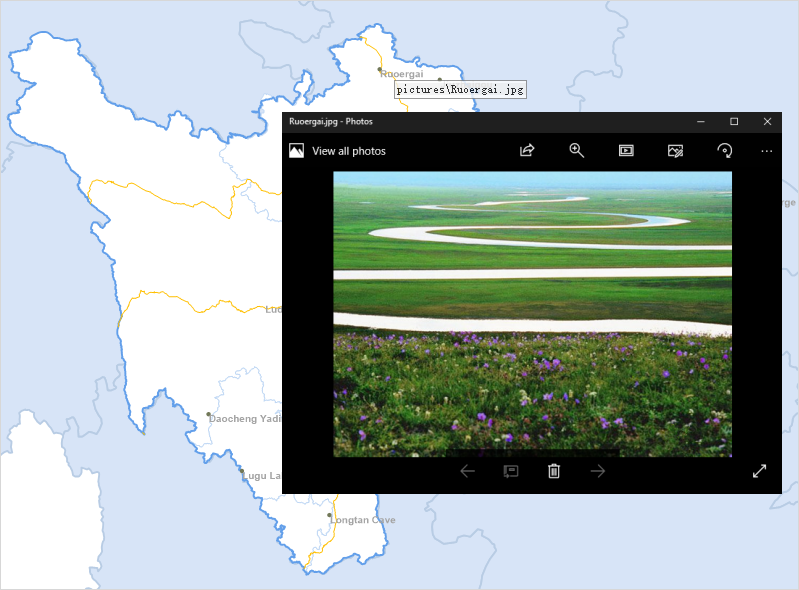 |
| Viewing Hyperlink Image Result |
- In the dataset Properties panel -> Table, click the
 Hyperlink button in the toolbar. In the pop-up list of wide character and text type fields, check the fields that need to be set as hyperlinks, click OK, and then click the Apply button in the toolbar.
 - Editing Hyperlink Field Values: After selecting an element in the map, the Properties panel pops up. Set the field values for this element in the panel; you can also set field values in the tabular view. If the hyperlink content is a URL, you can directly fill in the website address; if the hyperlink content is a file, you can fill in the absolute path of the file, or the relative path relative to *.udb. For example, if the image is in the img folder one level above the UDB, the relative path is written as "..\img\pic.png".
- Enabling Map Hyperlink: Open a dataset with hyperlink fields in the map, click the Map -> Select -> Hyperlink button. When the hyperlink button is selected, you can view the files linked by vector objects in the map.
- Move the mouse to the map, and the mouse cursor will change to . Move the mouse over the map, and the link content of the object under the mouse will be displayed. Click on a vector object to view the file corresponding to its hyperlink. If the object has multiple hyperlink fields, clicking the mouse will pop up a selection dialog box, which displays all hyperlink contents of the object. Click on a hyperlink to view it.
- End hyperlink browsing: Right-click in the map; or click the Map -> Select -> Hyperlink button again to make it unselected.
 Notes
Notes
- Hyperlink type only supports Text and WideChar.
- If you want to cancel the hyperlink of a field, in the dataset Properties -> Table toolbar, click the Hyperlink button, uncheck the field in the list, and click Apply.