



Creating a PostgreSQL database can be summarized in the following three steps: initializing the database storage area, starting the database server, and creating the database.
Initialize the Database Storage Area
In PostgreSQL, the database storage area is called a database cluster, which is the region used to store files required for database operation.
If a data save path is specified during the installation process, PostgreSQL completes the initialization of the database storage area upon finishing the installation. If the initialization of the database storage area fails during installation, it may result in the specified directory being empty. In this case, manual intervention is required, as described below.
- Create a new data save path named "data". This directory should be placed under the PostgreSQL installation path (e.g., C:\Program Files\PostgreSQL\9.0), and it must not be the same as the data save path specified during installation.
- Use the command line to navigate to the "bin" directory under the PostgreSQL installation directory.
cd "C:\Program Files\PostgreSQL\9.0\bin"
- Initialize the database by entering the following command in the command line:
initdb -D "C:\Program Files\PostgreSQL\9.0\data" --no-locale -U postgresExplanation:
- -D: Specifies the database storage path.
- --no-locale: --no-locale is equivalent to -locale=C, meaning the runtime language environment settings are set to: no locale.
- -U: Allows the user to specify the name of the superuser. The installation program automatically creates this superuser — postgres — during the preceding installation process.
Start the Database Server
- Create a folder named "log" under the PostgreSQL installation directory, and within it, create a log file named "pgsql.log".
- Start the database server via command.
pg_ctl -D "C:\Program Files\PostgreSQL\9.0\data" -l "C:\Program Files\PostgreSQL\9.0\log\pgsql.log" startExplanation:
- -D: Specifies the database storage path.
- -l: Log file path.
- start (start)/stop (stop)/restart (restart)/status (check status).
Create a Database
There are three ways to create a PostgreSQL database:
- Use the client provided by PostgreSQL (pgAdminIII) to start the database service and create the database.
- Use the SQL Shell provided by PostgreSQL to create the database using SQL statements.
- Use the PostgreSQL createdb command.
Regardless of the method used to create the database, once the database is successfully created, you can enter the database to perform various SQL operations.
- As shown in the figure below, right-click on the "Databases" group of the already started database server, click the "new database..." menu item, and the "new database" page window will pop up, allowing you to create a new database named "SuperMap".
For information on configuring the server in the "pgAdminIII" tool, please refer to Modify the Configuration File.
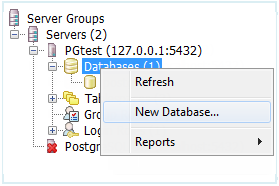
Figure: New database operation 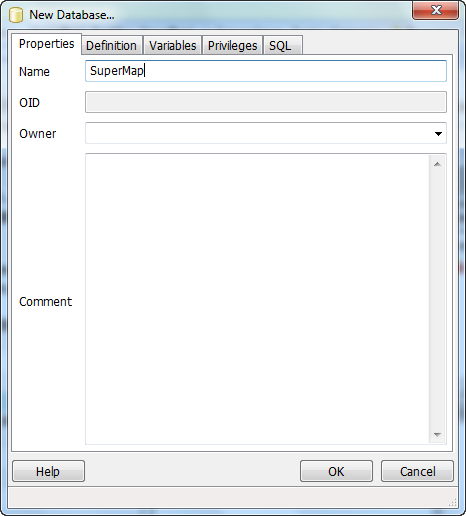
Figure: "New database" Dialog - Create Database Using SQL Shell
Start the PostgreSQL SQL Shell tool, as shown in the figure below. After successful login, you can type the SQL statement to create the database.
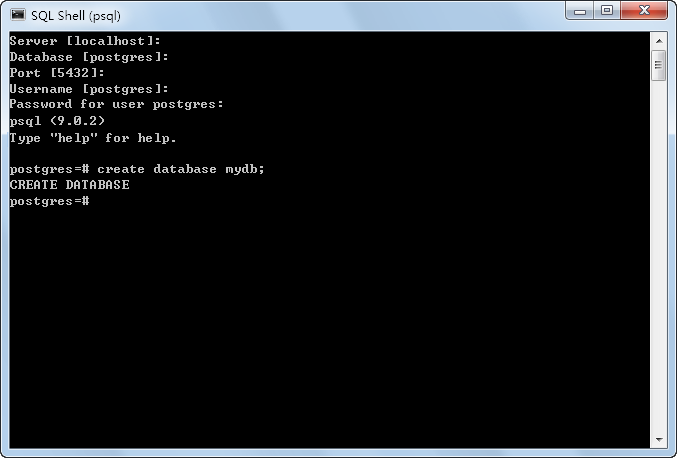
Figure: SQL Shell Tool The SQL statement is as follows:
create database mydb; - createdb Command
Navigate to the bin directory under the PostgreSQL installation directory and use the createdb command.
create smdb;