



Feature Description
Image color balancing is an image preprocessing technique designed to eliminate color inconsistency caused by different shooting seasons, sensor differences, or varying weather conditions by adjusting the color, brightness, and contrast of multiple images involved in mosaicking, thereby achieving DOM tessellation results with uniform color and visual harmony.
Image color balancing maps and matches the statistical features (such as mean and variance) of the images to be processed to a reference standard through mathematical transformation, achieving consistent color feature adjustment among images. Its main methods include:
- Template color balancing: Based on a specified reference image with good color effects, adjusts the color distribution of the images to be processed to be similar to the template.
- Adaptive Color Uniformity: Without specifying a template, the algorithm automatically analyzes the global and local statistics information of all images involved in the mosaic image, obtains an optimized color balance target through adaptive calculation, and processes each image to achieve overall tone balance.
Image color balancing is generally applied in the following scenarios:
- DOM production and mosaicking: Before seamless mosaicking of multiple orthophotos, color balancing processing is an essential step that can effectively improve the professionalism and visual quality of the result map.
- Multi-temporal image comparative analysis: When comparative analysis of images of the same area taken at different times is needed, color balancing can reduce color interference caused by lighting and seasonal changes, making ground feature changes easier to identify.
When using image color balancing, the following issues need attention:
- Supported data format: *.tiff, *.tif, *.img, *.pix.
- Recommended input images: 8-bit depth, 3-band (red, green, blue) true color image for optimal processing results.
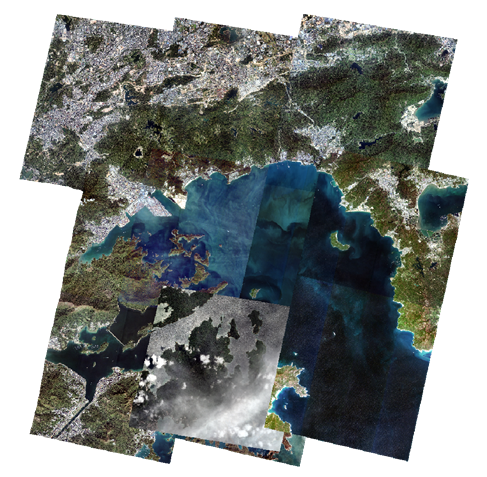 |
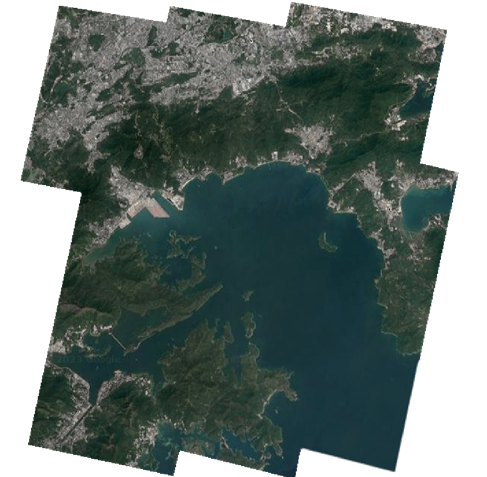 |
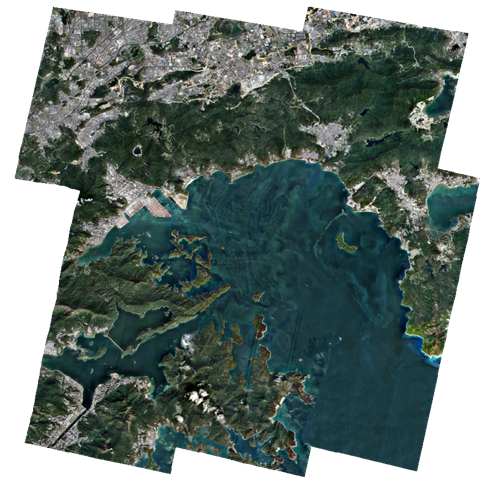 |
| Figure: original image | Figure: color balancing template | Figure: color balance result |
Parameter description
| Parameter Name | Parameter Interpretation | Parameter Type |
| data type |
This parameter is available only when the function is launched from the Satellite Image Processing tab -> DOM Data Production group -> Image Color Balancing. Select the source of input image data. The following options are provided:
|
|
| image files |
This parameter is available only when the function is launched from the Satellite Image Processing tab -> DOM Data Production group -> Image Color Balancing, and Data Type is set to Image Files. Set the local path where image files are stored. After selection, color balancing will be performed on all images that meet the format requirements in the specified path and its sub-paths. |
File |
| image data source |
This parameter is available only when the function is launched from the Satellite Image Processing tab -> DOM Data Production group -> Image Color Balancing, and Data Type is set to Mosaic Dataset. Specify the datasource where the image dataset is located. |
Datasource |
| image data |
This parameter is available only when Data Type is set to Mosaic Dataset. If it is a production workflow, only the dataset is displayed and cannot be edited. Specify the mosaic dataset used for color balancing. |
DatasetMosaic |
| Color Balancing Method |
Select the processing mode for color balancing. The following options are provided:
|
DesktopColorBalanceType |
| color balancing template |
This parameter is available only when Color Balancing Method is set to Template color balancing. Specify local image files as the color reference template. The system will adjust the images to be balanced based on this template so that their colors are consistent with or highly close to the template. When the images to be balanced are single-band, only 8-bit unsigned template data is supported as input. |
File |
| color balancing method |
This parameter is available only when Color Balancing Method is set to Template color balancing. Select the specific algorithm for template color balancing. The following options are provided:
|
ColorBalanceMethod |
| block size |
Set the block size for color balancing processing. The smaller the block, the more refined the color balancing processing, but the longer it takes. The following options are provided:
|
BlockSizeOption |
| red band index | Specify the index number representing the red channel in the image. The default value is 0. | Integer |
| green band index | Specify the index number representing the green channel in the image. The default value is 1. | Integer |
| blue band index | Specify the index number representing the blue channel in the image. The default value is 2. | Integer |
| Brightness |
Adjust the brightness of the result image. The value range is [-100,100], and the default value is 0.0. The larger the value, the higher the brightness of the result image. |
Double |
| Contrast |
Adjust the contrast of the result image. The value range is [-100,100], and the default value is 0.0. The larger the value, the stronger the contrast of the result image. |
Double |
| Saturation |
Adjust the saturation of the result image. The value range is [-100,100], and the default value is 0.0. The larger the value, the stronger the saturation of the result image. |
Double |
| mask data | Not checked by default. If checked, a polygon vector dataset can be set as a mask, and the system will exclude pixels within that region before performing color balancing calculation and output. | Boolean |
| Datasource |
This parameter is available only when Mask Data is checked. If executing a production workflow, this parameter is not provided. Specify the datasource where the mask dataset is located. |
DataSource |
| Dataset |
This parameter is available only when Mask Data is checked. If executing a production workflow, the mask data in True Color Output is used by default. Specify the vector polygon dataset used as the mask. The dataset must contain an ImageName field, and the name must correspond to the current image name to be processed. |
DatasetVector |
| color balancing preview | Not checked by default. If checked, when executing the workflow or running the tool independently, it will first pause and generate a color balancing preview image based on the set preview resolution for users to preview in a dedicated window. | Boolean |
| Preview Resolution |
Set the resolution used for previewing the color balancing effect. Lower resolution (larger downsampling factor) provides smoother but blurrier previews; higher resolution (smaller downsampling factor) provides slower but clearer previews. This setting is only for preview and does not affect the quality of the final output result. The following options are provided:
|
OrthoRatioDecreaseMethod |
| export directory |
Set the storage path for the result image after color balancing processing.
If executing a production workflow, the Processing path parameter in Set Image Path or Add orthophoto is used, and it cannot be edited. |
File |
| resampling method |
Set the method used for resampling during the imagery process. Nearest, Bilinear, and Cubic are provided. The default value is Bilinear. For more method introductions, please refer to Resampling Method. |
ResampleMethod |
| result minimum value | Set the minimum pixel value in the result image. The default value is 1. | Integer |
| result maximum value | Set the maximum pixel value in the result image. The default value is 255. | Integer |
| No Value | Set the pixel value for no-value areas in the result image. The default value is 0.0. | Double |
| resolution type |
Specify the method for outputting the resulting image resolution. The following options are provided:
|
OrthoRatioType |
| output format |
Set the storage type of the result image. The following options are provided:
If executing a production workflow, the Output format parameter in Set Image Path or Add orthophoto is used, and it cannot be edited. |
FileType |
| compression method |
When Output format is Tiff/GeoTIFF, set the compression method for the output image. NONE, DEFLATE, LZW, and JPEG are provided. The default value is NONE. For more method introductions, please refer to Compression method. If executing a production workflow, the Compression method parameter in Set Image Path or Add orthophoto is used, and it cannot be edited. |
CompressMethod |
| output as original image coordinate |
If this parameter is checked, the result data will use the same image coordinate system as the input data. If not checked, the Output coordinate system parameter in Set Image Path or Add orthophoto is used, and it cannot be edited. |
Boolean |
| add results to map window |
This parameter is available only when the function is launched from the Imagery tab -> DOM Data Production group -> Image Color Balancing. Checked by default. After the function execution succeeds, the result data will be automatically added to the current map window for display. |
Boolean |
| create image pyramid |
Checked by default. Pyramids will be built for the output image data, thereby improving the zoom browsing speed and display performance of large-volume images. If executing a production workflow, the Create Image Pyramid parameter in Set Image Path or Add orthophoto is used, and this parameter is not displayed. |
Boolean |
| resampling method |
This parameter is available only after Create Image Pyramid is checked. Specify the resampling method used when creating image pyramids. NONE, Average, Nearest Neighbor, and Gaussian Kernel are provided. The default value is Average. For more method introductions, please refer to Resampling Method. If executing a production workflow, the Resampling Method parameter in Set Image Path or Add orthophoto is used, and this parameter is not displayed. |
ResamplingMethod |
| asynchronously create statistics |
The statistics information of the image is used to optimize the stretch effect during display. If the image has no statistics information, it will be displayed according to the default stretch method, and no stretch display will be applied to 8-bit data.
If executing a production workflow, the Asynchronously create statistics parameter in Set Image Path or Add orthophoto is used, and this parameter is not displayed. |
Boolean |

Output Result
- Output the color-balanced image data to the local folder.
- Automatically create an image color balancing mosaic dataset in the OrthoData datasource based on the output image data.
Related Topics