



In the organizational structure of the ribbon, tabs can be considered as the first-level organization of functions and commands. The functions within a tab are generally centered around an application theme or targeted at a specific type of object. Multiple tabs can be contained on the ribbon.
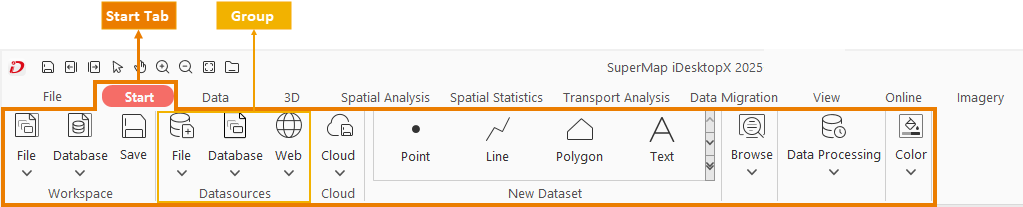
In the config file, the ribbon corresponds to the <ribbons></ribbons> tags, and each tab corresponds to a <ribbon>…</ribbon> tag. When configuring the ribbon interface, the configuration content for the all functions area must be placed within the structure described below. The <tabs>…;</tabs> tags represent a collection of all tab pages, meaning this tag can contain multiple <tab>…</tab> tags.
    <ribbons>
        <ribbon formClass="SuperMap.Desktop.FormMap" id="map" index="100" label="Map" visible="true">
            <group id="Browse" image="../resources/Group/Icon/MapOperation/Browse.png" index="0" label="Browse" rowCount="2"">
                ......
            </group>
            ......
    </ribbon>
    ......
</ribbons>
To add a tab to the interface, simply add a <ribbon>…</ribbon> tag and set its attributes to complete the construction of the tab in the interface. To add multiple tabs, add multiple <ribbon>…</ribbon> tags accordingly. The following details the meaning and function of each attribute of the tag:
| Attribute | Description |
| id | Multiple items from different config files can be merged for tabs. The basis for merging is implemented through the id. For example, we can configure a tab in config file A of plugin A with a specified id, and simultaneously configure a tab in config file B of plugin B with the same id. When the system displays them, the items from these two tabs will be merged and displayed on a single tab. |
| index | Used to sort tabs on the ribbon. When multiple tabs exist on the ribbon, the arrangement order of each tab is determined by the value of this attribute. |
| label | The show name of the tab. "Map" is the show name of this tab. |
| visible | Specifies whether the tab is visible. A value of true indicates visible, and false indicates invisible. |
| platform | The operating system platform supported by this tab. Supports settings: All, Windows, Linux. All indicates support for all platforms, Windows indicates support only for the Windows platform, and Linux indicates support only for the Linux platform. |
| language | Selects the language version supported for this tab's functionality. Provides four options: ZH, US, JA, All, representing Chinese, English, Japanese, and all versions, respectively. |
| formClass | Specifies the form (the main form by default) to which you want to bind the tab. A tab will display only if the window to which the tab is bound is activated. |