



SuperMap iDesktopX supports adding inset maps to the current map. Users can set visible bounds for inset maps, simplifying the process of creating complex map layouts and improving mapping efficiency.
This feature is useful for presenting complex information through multiple maps within a single layout, or when a large geographic area cannot be fully displayed in one frame. For example, when mapping China's complete administrative territory, the South China Sea islands can be added as an inset map in the bottom-right corner.
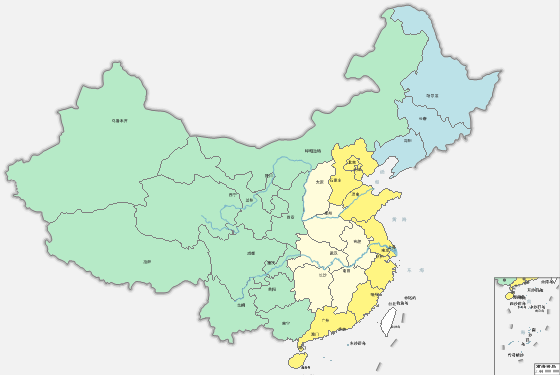 |
| Figure: Adding Inset Maps |
Steps
- Click the Maps tab -> Cartography group -> Inset Map button. The cursor changes to a drawing state in the current map.
- Draw Inset Map Frame: Click and drag at the desired location in the current map to create a rectangular frame for the inset map.
- Select Fill Map: After drawing the rectangle, the Select Fill Map dialog appears. Choose an existing map from the current workspace as the inset map.
- Click "OK" to populate the rectangle with the selected map. A properties toolbar appears on the right for further adjustments:
- Switch Map: Replace with a different map.
- Move: Reposition the inset map frame.
- Full View: Automatically adjust zoom level to fully display the map within the frame.
- Pan: Enter pan mode to navigate the inset map by left-click dragging.
In pan mode, right-click to access context menu options: Switch Map, Move Map, Full View, Pan, Zoom In, and Zoom Out.
Mouse wheel scrolling supports zoom operations.
- Apply: Finalize the inset map position and size. The system will:
- Create a new datasource (.udbx) in the workspace storage path for clipped datasets
- Add a new clipped map named "inset_mapname_insert" under the workspace Maps node
- Create a layer group named after the inset map in the current map's layer manager
- Note: Visible bounds become fixed after applying. Subsequent modifications must use standard map operations.
- Cancel: Abort the inset map creation process.
Application Example
Using sample data from SampleData->ThemeMap->Illinois workspace, this example adds two inset maps (state locator map and voting district map) to the 2016 Illinois Election Map, achieving the result shown below.
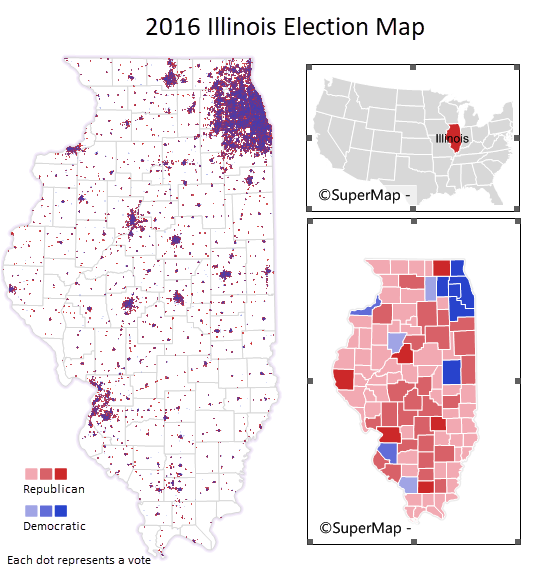 |
| Figure: Inset Map Result |