


Draw Line To Modify Border
Feature Description
The Draw Line to Modify Border function adjusts the boundary of a selected region object based on a newly drawn line, allowing users to quickly modify the boundary of the region object without editing nodes.
- Draw Line to Modify Border is applicable to region layers.
- The Draw Line to Modify Border operation requires first selecting the region object to be modified. The newly drawn line must intersect the boundary of the region object to be modified at two or more points.
Function Entry
- Edit Data tab->Object Editing group->Face editing->Boundary Trim->Draw Line to Modify Border.
Operation Steps
- In the Edit Data tab, in the Object Editing group, click the Face editing drop-down menu, then in the Boundary Trim group, click the Draw Line to Modify Border button to perform the Draw Line to Modify Border operation.
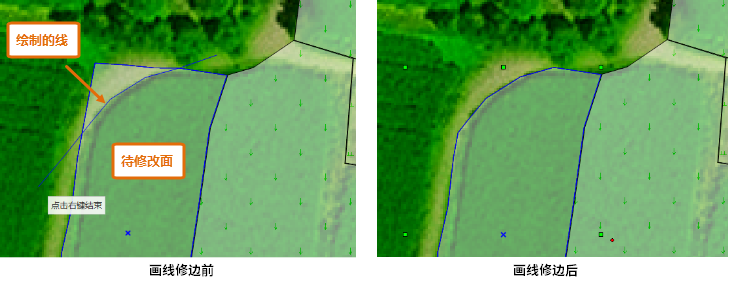
- Move the mouse to the map. The cursor changes to a crosshair with the prompt: "please draw a line intersecting with the selected object at two or more points." At this point, you can start drawing a curve. Right-click to finish drawing and complete the edge modification, as shown in the figure below: