



View S-104
Supports the import of S-104 compliant *.h5 Data into a File Database, Database-type Datasource (PostGIS or DMPlus), or EMS Datasource. Note The Datasource that imports S-104 data cannot be a read-only Datasource.
Operation steps
- Open or create a new Datasource in Workspace to hold *.h5 files.
- Select the Datasource to be Import Nautical Chart Data, and select Import Nautical Chart Data-> S-104 in the Context Menu; Alternatively, select the Datasource to be Import Nautical Chart Data, Start tab-> Data Processing group-> Data Import drop-down menu-> Chart-> select S-104.
- Select one or more S-104 *.h5 files in the Import Nautical Chart Data pop-up box, and click Open.
- After Select File, the selected file is listed in the S-104 dialog box, and the following parameters are available for viewing and editing:
- Source File: Displays the imported *.h5 File Name.
- Source Data: Displays the imported Chart Data path.
- Encoding Format: The default is TIN. Four other Encoding Formats such as FIXSTATION and REGULAR GRID are also provided.
- Target Data source: Displays the name of the Target Datasource. Other Datasources in the Current Workspace can be selected from the drop-down list.
- After setting the above parameters, click the Import button to complete the import of S-104 Chart Data.
Browse navigation water level data
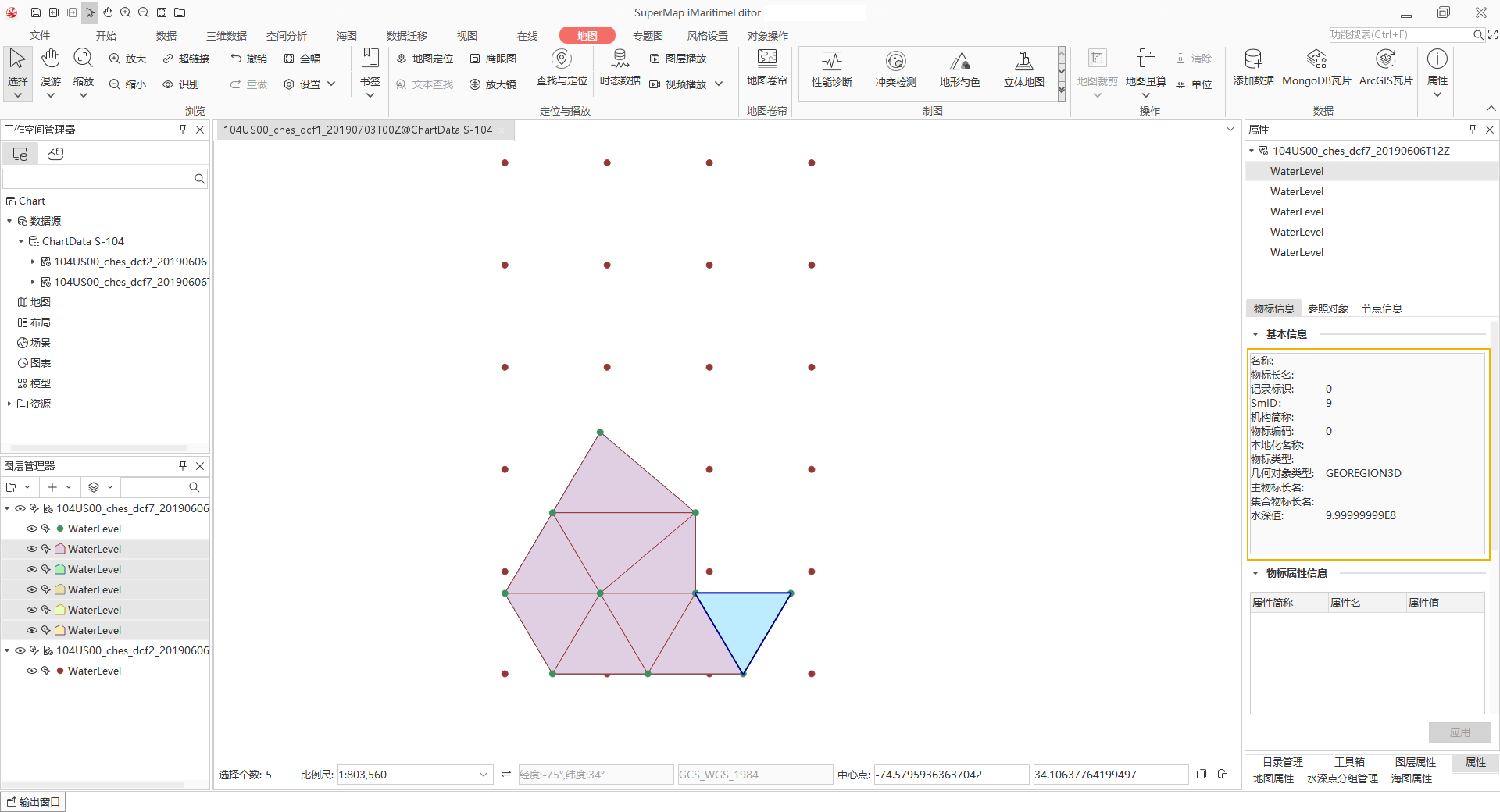
After importing the S-104 file, click or hold Shift to select the Chart Group to be browsed in batch, and select Add to New Map or Add to Current Map in the Context Menu to quickly browse the navigation water level data.
You can select the navigation water level element in Map and query the attribute, and the Basic Info including Water Depth Value will be displayed in the Attribute panel on the right, as shown in the following figure:
 Caution:
 File Path of
Import Data cannot contain Chinese characters.
Related topics