



Map annotation is a special visual element on the map. Map annotation uses text to explain the map content that graphic symbols are difficult to explain. It exists on the map combined with graphic symbols. The purpose of map making is to meet practical needs. Therefore, the text on the map is indispensable, and the coverage of the text on the map is generally large, so the processing of the text on the map is the key and difficult point of map making, and it is also one of the key factors related to the beauty of map composition.
The production of map annotation often involves the position of characters, the arrangement of characters, the style of characters, and the Handle Conflict between characters. In this article, we will focus on "the arrangement of characters" and list all kinds of things we encounter in the actual drawing process. The problem of text arrangement, and provide the corresponding Solution.
Question 1: Chinese words are separated
As shown in the red box in Figure 1 below, the Chinese word group is split, which generally means that a word in the Chinese word group is wrapped, and when reading, it is easy to produce a reading experience that is not smooth.
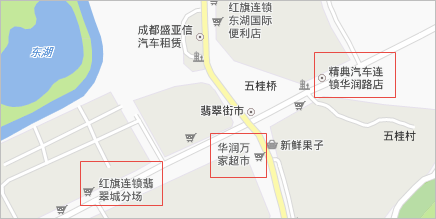 |
| Figure 1: Chinese words are split -- not optimized |
Solution has the following two types of solutions for such problems:
- Adjust the number of words in a single line of text
- Maintains and guarantees the alignment of wrapped multiline text.
- Wrapping control in two lines is the most beautiful state.
- A line of text control in 4 or 5 or 6 words is perfect, up to 7 words, 8 words are a little more.
- After a line break, if there is only one word left on the last line, you need to refer to the previous line.
- Set line break
According to the distribution characteristics of the number of words in the notes, the number of words in a single line of text is adjusted to be small or large, so as to ensure that the words are not separated. There are also some principles to follow in setting the number of words in a single line of text, such as:
When a super-long text is wrapped, the text can also be wrapped by specifying a line break character, so as to reduce the problem that Chinese words are split. Newline characters supported in SuperMap are: "\"/ ","; ". For example, the label "Red Flag Chain Emerald City Branch" in Figure 1, Only by adding a line break in the attribute value, that is, modifying the attribute to "Red Flag Chain \ Emerald City Branch", a better line break effect can be obtained.
Combining the above two methods, the optimized annotation effect is shown in Figure 2 below.
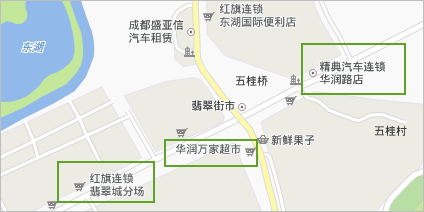 |
| Figure 2: Chinese words are split-optimization effect |
In addition, if you have a large number of annotations with certain rules, you need to add line breaks in the attributes, and you can use the Label preprocessing tool for batch processing.
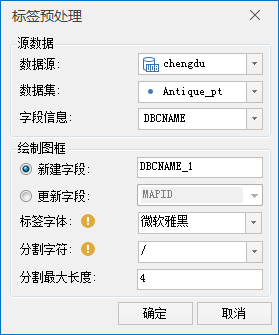 |
| Figure 3: Label preprocessing tool diagram |
Question 2: The combination of numbers and dashes is split
Numbers and dash combinations generally have a fixed meaning, so they should not be broken apart when overlong text wraps. The problem shown in Figure 4.
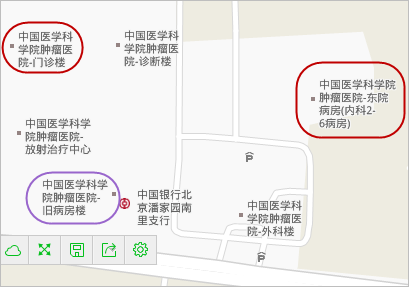 |
| Figure 4: Combination of numbers and dashes unpacked -- not optimized |
For this kind of problem, the best solution is: set line break
If you do not set a line break, you can also adjust the number of words in a single line of text. Currently, the default optimization for "-" in SuperMap software is that "-" wraps to the next line, not at the end of the previous line. Also, we can set the TextAlignment to "Distributed Alignment", Make the multiple lines of text line up more neatly, as shown in Figure 5.
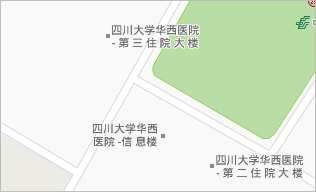 |
| Figure 5: Numbers and dashes are unpacked -- optimization effect |
Q3: Half parenthesis appears at line break
As shown in Figure 6, it is a common problem of half parentheses when a long text is wrapped.
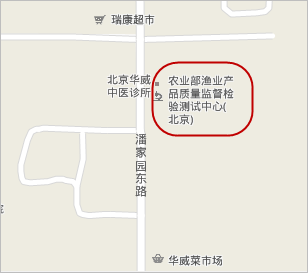 | 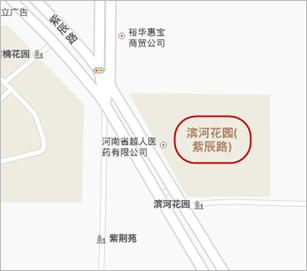 |
| Figure 6: Common half bracket problem -- not optimized | |
The best Solution for this kind of problem is also: set line break. In this way, adjust the position of the parentheses so that they do not appear at the end of the first line. You can also set the Alignment of multiple lines of text to "Distributed Alignment" to distribute the annotations more neatly.
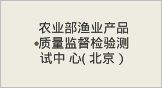 | 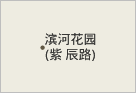 |
| Figure 7: Common half bracket problem -- optimization effect | |
Question 4: The abbreviation "." Is wrapped.
As shown in fig. 8, the "." Sign for the common English word abbreviation is wrapped.
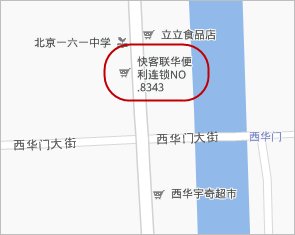 | 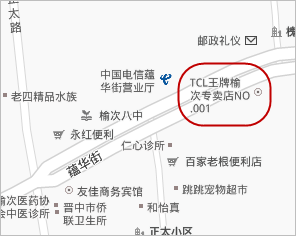 |
| Figure 8: English Word Abbreviation Wrapped -- Not Optimized | |
This kind of problem can be determined according to the specific situation of the annotation. You can use the method of adjust the number of words in a single line of text, as shown in Figure 9, or you can use the method of set the line break to put "." And English or Chinese characters in the same line, as shown in Figure 9b.
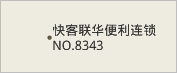 | 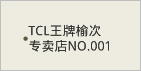 |
| Figure 9: English Abbreviations Wrapped -- Optimization Effect | |
Question 5: English words are split.
Figure 10 shows the problem of a common English word being split when the line is broken.
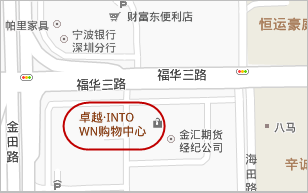 | 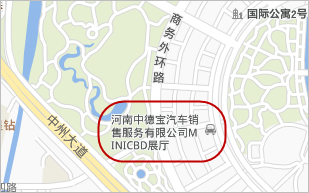 |
| Figure 10: English words are split -- not optimized | |
The Solution of this kind of problem is also to select Adjust the number of words in a single line of text or Set the line break according to the actual annotation situation. A common example of being split is the mixing of numbers and words, and Solution is the same.
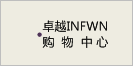 | 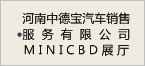 |
| Figure 11: English words are split -- optimization effect | |
Q6: Should be split for complete numbers.
As shown in fig. 12, a number with complete semantics such as "36" in "No.36 Courtyard Community, Huayuan North Road" should not be separated when marking. However, automatic line wrapping sometimes can not avoid such problems, so manual intervention is needed.
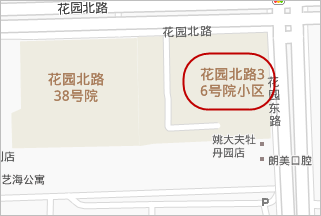 | 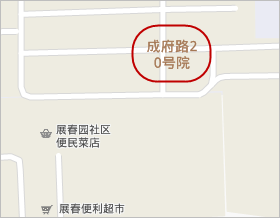 |
| Figure 12: The complete figure is unpacked -- not optimized | |
The Solution to this type of question, as in Question 5, adjusts the number of words in a single line of text or specifies a newline character.
 |  |
| Figure 13: The complete figure is taken apart -- optimization effect | |
Q7: Other text wrapping issues.
As shown in Figure 14, when numbers or English exist in the annotation, the width of numbers or English is different from that of Chinese characters, so the width is different.
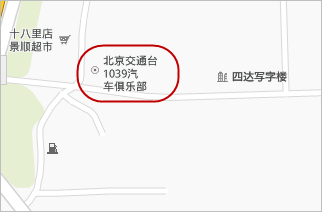 | |
| Figure 14: Text wrapping with Chinese, English, or numbers -- not optimized | |
Solution to this problem: Set the Alignment of multi-line text to "Distributed Alignment" to make the annotations more neatly distributed.
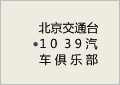 | 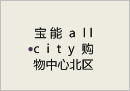 |
| Figure 15: Text wrapping with Chinese and English characters or numbers -- optimization effect | |
Summary:
As can be seen from the previous seven questions, due to the diversity of annotations, for example, the number of characters varies, including pure Chinese characters and combinations of English, numbers and Chinese characters, the number of characters in a single line can only be set according to the characteristics of most annotations when setting the line break of super-long text. For special ones, manual intervention is required, for example, setting the line break character.
However, in the current software, notes with and without line breaks cannot be placed in the same layer. If a line break is specified, notes without line breaks will be displayed in the form of single-line text instead of multi-line text. On the contrary, if a line break exists in a note but is not specified during setting, the line break will be displayed in the form of a common symbol. Displayed in the callout.
As shown in the red box in Figure 16 below, most of the label arrangement problems can be solved by setting the parameters in "Label Length Settings".
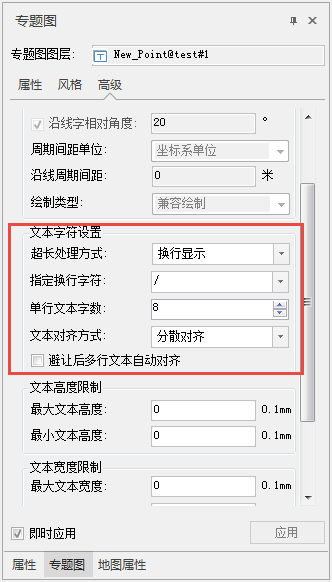 |
| Figure 16: Thematic Label Map Panel |