

Update Raster Value
Instructions for use
The Update Raster Value can quickly change the local value of Raster Data through Single Pick, Select Object, and Draw Bounds.
 Caution:
 This function will change the value of the original data.
Function entrance
- Data tab-> Data Processing group-> Update Raster Value.
Operating instructions
- Select to set Raster Data to be updated from the Target Layer drop-down box.
- Click the Add button, select the Scope of update, right click to finish the selection, and the range will be automatically added to the update list below. The following selection methods are supported:
- Single Pick: Select a single pixel;
- Select Object: Select one or more areas;
- Draw Bounds: Draw an area range, which can be Arbitrary Polygon.
- You can set the update value of each range individually in the update list, or click the Uniform Settings button to update the value of the selected range.
- After setting the update value, click the Run button.
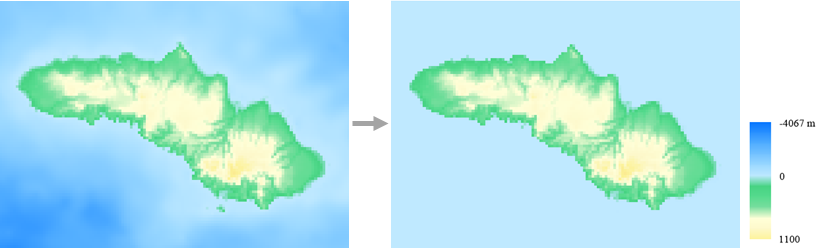
Set the Update Raster Value of the area below the sea level in a certain area as 0, and the results are shown in the following figure: