


Object DetectionSample Management
Object Detection samples need to mark different types of targets in the sample image, and add labels of corresponding categories to the targets. SuperMap iDesktopX provides the functions of target sample type management and target marking. Four label drawing methods are provided: Draw Rectangle, Polygon, Draw Line Buffer Surface and Batch Draw.
Main operating instructions
- Create/open Object Detection sample library: Prepare Object Detection sample library and sample types. Please refer to the Sample library management page for sample library creation, opening or import methods.
- Draw Sample Tag:
- AI Label: Samples can be quickly extracted through PaddleSeg and SegmentAnything Model Algorithms. For details, please refer to AI Label .
- Rectangle: When drawing the Bounds of the target, you can select the rectangle drawing method. Select Rectangle from the Face drop-down option, and move the mouse to the Sample Picture Window to draw the rectangle label of the target.
- Polygon: Object Detection If you need to accurately obtain the boundary of the object, you can add the Sample Tag by means of Draw Polygon, and select the Face drop-down option- Select Polygon, move the mouse to the Sample Picture Window, and draw the polygon label of the target.
- Line: If the target is distributed in a linear form, it can be added to the label of the target by drawing a broken line and buffering it into a surface object according to Buffer Radius:
- Batch Draw: When the sample size and shape are similar, you can quickly add a rectangular Sample Tag by fixing the size and category of the tag in Batch Add. After setting the width, height and label type of the sample rectangle label, you can click the mouse at the target position to quickly Add Label.
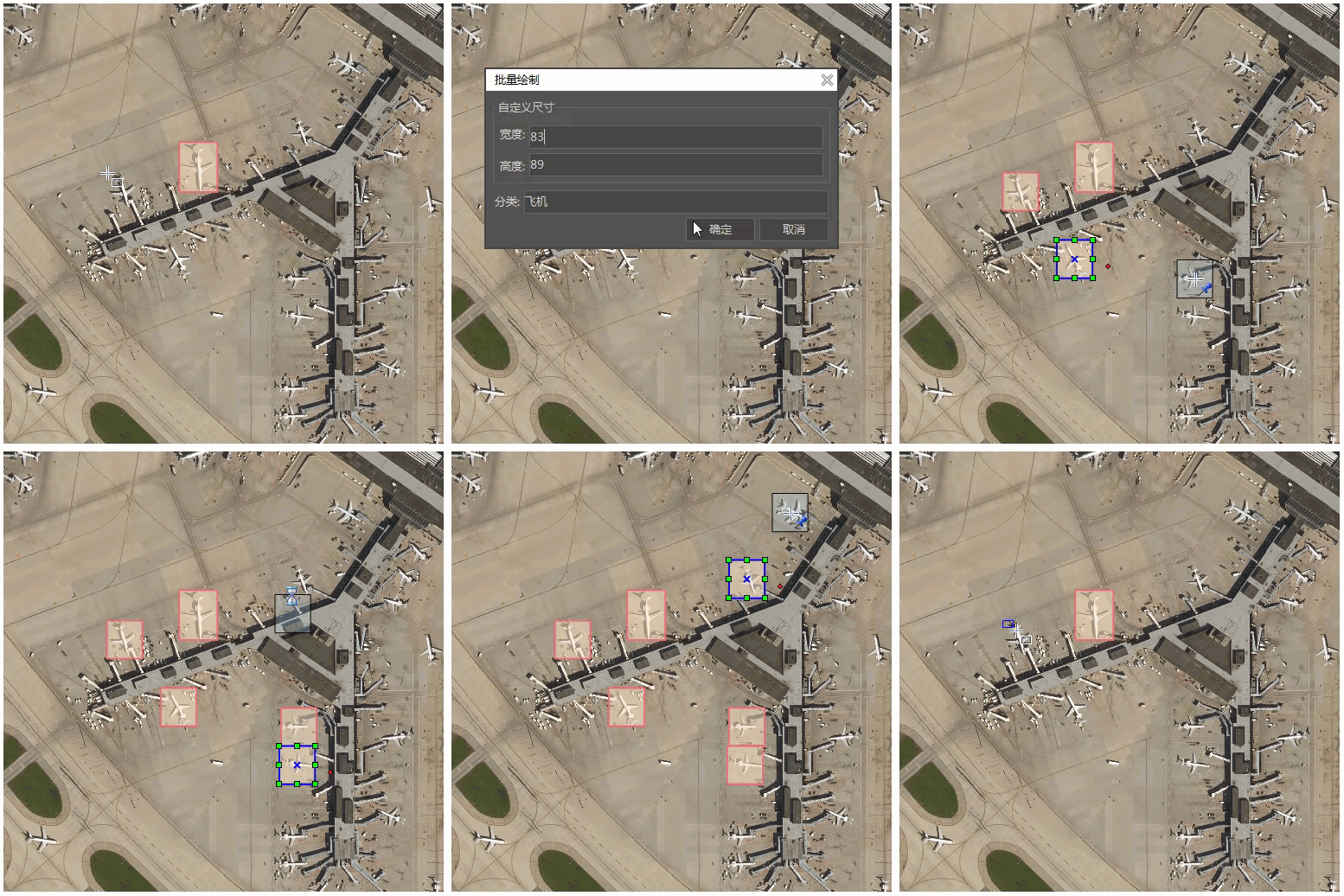
- After drawing the Sample Tag, the number of tags drawn for each image will be displayed in the Sample Library List.
- Edit Sample Tags:
- Delete: Select a label in the Sample Picture Window, or select a label node in the label list in the Sample Label Extraction window, and press the Delete key or the Delete button to delete the specified label.
- Edit Sample Size: After selecting Sample Tag, you can select the node and adjust the node position. At the same time, you can click the left mouse button on the label edge to Insert Node.
- Edit sample type: Select the Sample Tag of the sample type to be modified in the Sample Label Extraction window, click the Edit button in the toolbar, and reselect or set the label type in the pop-up dialog box.
- Undo: Support Ctrl + Z to undo operations such as adding, deleting, and editing of Sample Tag.
- Sample Label Settings
- Buffer Radius: sets the Buffer Radius: when drawing the line Sample Tag. After setting, the line will be buffered to the Sample Tag face according to the specified radius. Units are pixels.
- Display Label Classification: Set whether the Sample Picture Window is a Show Lable category.
- Layer Style: Click the Layer Style button to set the fill and border display style of label side layers in the Fill Symbol Selector.
- difficult Identify: Select the label in the Sample Label Extraction panel, You can set whether the label is Difficult Identify. The label of Difficult Identify will participate in Model Training, but will not participate in the index calculation of model accuracy.
Related topics
Image ClassificationSample Management