



Product activation requires configuration on the Windows platform to take effect. The following explains the steps to configure the license on the Windows platform.
Deploy SuperMap License Center
SuperMap License Center is used to manage the series products' licensing tasks, including configuring license information, managing license information internally and externally, and checking the detailed license status and usage on the target machine.
1. SuperMap License Center is provided in a Zip package. You can obtain the Zip package and deploy it as follows:
Visit: SuperMap Technical Resource Center, download the “SuperMapLicenseCenter.zip” package. Unzip the Zip package and run the Setup.bat file under the product package directory\Tools path to complete the deployment of the SuperMap License Center.
2. After completing the deployment of SuperMap License Center, you can start the License Center by running the SuperMap.LicenseCenter.exe file under the product package directory. The first time you open the License Center, a 90-day trial license will be installed by default. You can apply for a trial license on the SuperMap Technical Resource Center page, and each machine can only apply once. The trial license period is one month each time.
3. Run the Updater.exe file under the product package directory to update the SuperMap License Center tool and get the latest version of the SuperMap License Center.
Configure License Information
*.licx License
Run SuperMap License Center as an administrator, open the activation update page, set the location of the *.licx official license file you received, and click the update button to activate the license.
Configure Hardware License
- For single machine lock (green frosted appearance): Before using the hardware license, you need to first install the license driver by double-clicking the product package\support\SuperMap.Desktop.LicenseInstaller.exe file. Then insert the dongle to complete the license configuration.
- For network lock (red frosted appearance): The network lock needs to be installed on any computer in the network, and the computer where the network lock is installed is called the license server. Clients within the network license scope do not need to install the license driver and can directly use the network lock.
 Caution:
- If a usable license server is already configured within the same subnet in the current network environment, the license will be automatically obtained and configured without manual configuration;
- If a usable license server exists in other subnets in the network environment, follow these steps to configure the license: Run SuperMap License Center as an administrator, enter the license server IP or server name in the “Remote Connection License” section on the Settings page, and click the Restart License Service button to make it effective.
- The default license connection port is 1947. If this port is occupied, you can set another unused port in the “License Connection Port” section and click the Restart License Service button to make it effective.
Manage License Information
With SuperMap License Center, you can view license status, usage, and perform license management tasks such as updating licenses.
View License Status
The "License" page in SuperMap License Center displays the license information for the SuperMap GIS 11i series products on the target machine, categorized by product. Each record under each category corresponds to a license module for that product.
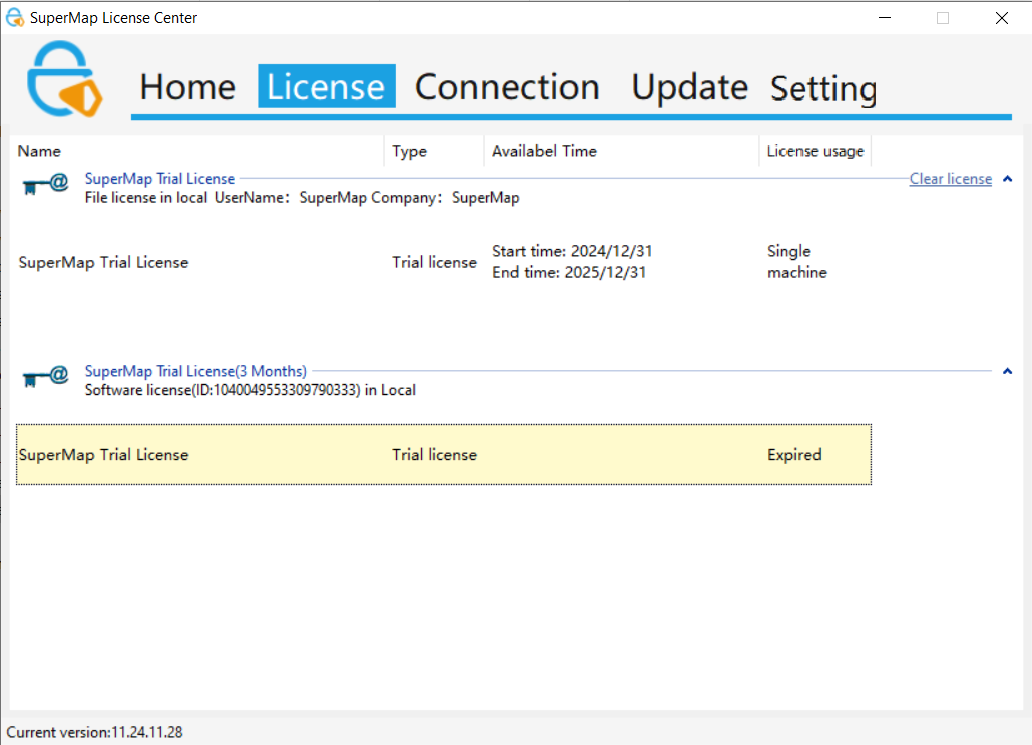 |
- Name: License module name.
- Type: Shows whether the license is a trial license or an official license.
- Available Time: Displays the remaining available days for this license module.
- License Usage: Displays the current status of this license module.
View License Connection Status
The "Connection Status" page in SuperMap License Center shows detailed information about the license modules for SuperMap GIS 11i series products on the target machine. Each record corresponds to a license module. Specifically:
- ID: ID of the license module.
- Module: Name of the license module.
- Address: License location, displaying "Local" if it is local or the corresponding machine IP if remote.
- User: The user and computer name where the license module is located.
- Process: Displays the process currently using the license module.
- Time: Displays the time when the license module was connected.
- Disconnect: Disconnect the license for this module.
Activate and Update License
The "Activation Update" page of SuperMap License Center is used to perform license updates.
Caution:- After inserting the hardware lock into the computer, the signal indicator on the lock lights up, indicating that the hardware lock is valid. In the Windows operating system, the hardware lock will be recognized as a USB device and can be used directly after insertion.
- For both types of hardware locks, the single machine lock will be prioritized when used on the same computer.
- If using the hardware lock on a virtual machine, you need to connect the hardware lock device to the virtual machine through the virtual machine software's settings.
- It is recommended that users of Windows XP or Windows Server 2003 first run the trial.bat file in the Tools→SuperMapLicenseCenter→Tools folder before configuring the license.