



Extrude Closed Body
Instructions for use
The Extrude Closed Body "function stretches TIN Terrain up to the specified elevation to form a closed body. The method can be used for solid model construction of 3D printing.
Operation steps
- Load Terrain Tiles (TINs) in the scene (Config File format is *.sct).
- Select the Terrain Tiles layer in Layer Manager, right-click "Jump to Layer", and hold down the mouse wheel in Scene to adjust the camera to a view that is easy to operate.
- In the 3D Geographic Design tab TIN Operation, click the Extrude Closed Body "button to pop up the Extrude Closed Body" panel, as shown in the following figure:
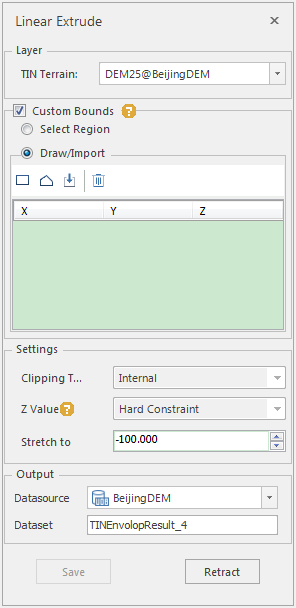
Figure: Extrude Closed Body "Dialog Box - Layer selection: Click the drop-down arrow in the combo box on the right side of TIN Terrain to select the layer of the target TIN Terrain.
- Result Data Settings
- Datasource: the first Datasource in the Current Workspace is selected by default, and the Datasource storing the Result Dataset can be selected through the drop-down list box.
- Dataset Name: Enter a string as the name of the Result Dataset.
- Stretch Range Settings
- Default: Without Range Settings, use the Default Range of TIN Terrain.
- Custom Bounds: When the Custom Bounds "check box is selected, you can set the extrusion range, including selecting faces and drawing faces. Drawing faces can be scoped by Draw Rectangles, polygons, and importing external 2D/Region3D.
- Stretch Parameter Settings
- Clip Mode: Includes Reserved Area and Outside the reserved area to determine whether the Extrude Closed Body is created inside or outside the extent face.
- Clip boundary elevation: includes Keep with source data "and Keep with clip polygon". "Keep with source data" means that the extrusion result boundary elevation value is consistent with the original one and remains unchanged; "Keep with clip polygon" means that the extrusion result boundary elevation is consistent with the extrusion range face boundary elevation value.
- Stretch to: Enter the Extended Height value or adjust the Extended Height value with the up and down arrows.
- Level: Enter the level parameter to stretch only the data at the specified level.
- After setting the above parameters, click the "OK" button to execute the TIN TerrainExtrude Closed Body operation. A Model Dataest named after the Dataset Name is generated under the specified Result Datasource. Example renderings are as follows:

Figure: Sample rendering
 Caution:
 - An open Datasource must exist before
- operating the Extrude Closed Body. The result of
- Extrude Closed Body is Save as Model Dataset.