



SuperMap iDesktopX is designed with a Ribbon interface. This design is production-oriented, and can present relevant functions to the interface according to your operation, so as to quickly locate and start functions, and improve the convenience of operation.
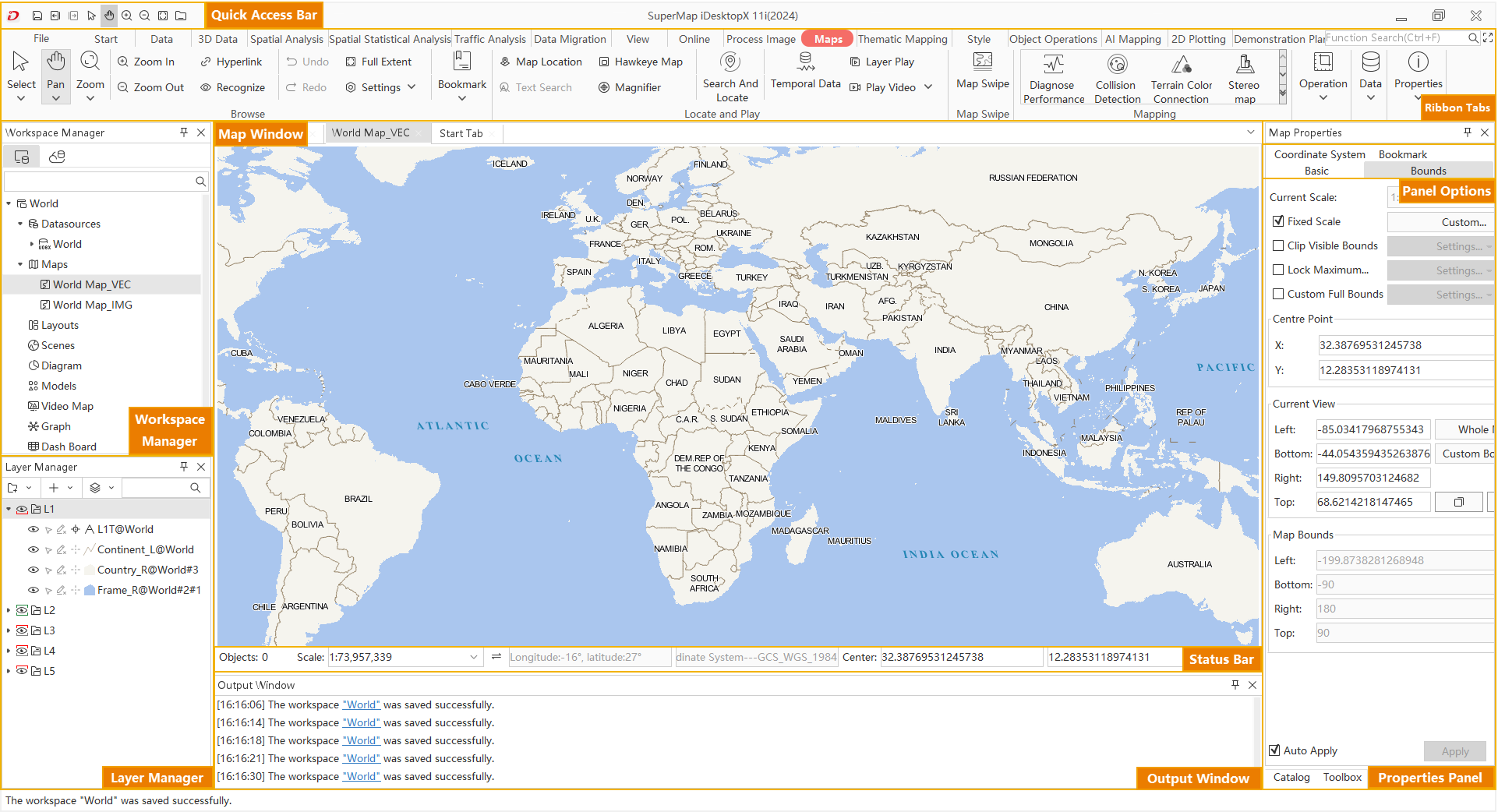
Ribbon
Different from the traditional GIS software interface, in the Ribbon style interface, the functions are classified in the way of "tab" and "functional group". Each "tab" closely matches the actual workflow, automatically rendering relevant functionality based on your actions. "Function group" refines the functions in "tab", that is, similar functions are put into one group, which improves the efficiency of function search and operation.
Context tab
A contextual tab is bound to an object and appears on the ribbon only when the object is activated in Application. For example, when you activate Map, the Map, Thematic, Style Settings ", Object Operation", and so on tabs associated with the map appear on the ribbon; When Scene is activated, The tabs associated with a scene, such as Scene, Style Settings ", Flying Management", Object Drawing ", 3D Geographic Design", 3D Analysis, appear on the ribbon. This kind of design can hide the function that does not need temporarily, wait to appear when need, facilitate faster, more intelligent begin work, make the interface more concise and clear at the same time.
Ribbon control
Ribbon controls are used on the ribbon, including Drop-down Button, Button, Text Box, Label, Combo Box, Button Gallery, Combo Box, Color Button, and Number Display Box. Only ribbon controls can be placed on the ribbon of a ribbon-style interface, and only ribbon controls can be placed on the ribbon.
Application child window
The windows in SuperMap iDesktopX mainly include the main window of Application, Dock Bars, Map, Scene, Layout, Tabular, and dialog boxes popped up during function operation. Among them, Map, Scene, Layout and Tabular are called child windows of Application.
Workspace Manager
Workspace Manager is a tool for visual management of Workspace. It uses a tree-structured management hierarchy to manage data, including Datasource, map, layout, scene, resource and other nodes. By clicking on these nodes, you can expand or collapse the content under the nodes and provide rich Context Menu functions.
Layer Manager
The Layer Manager is used to manage the All Layers in the current Map or Scene. Through the Layer Manager, you can easily control the visibility, editable state, and selectable state of each layer, and you can make relevant settings for the layer. Such as the Style Settings and Snap Settings of the layer.
Output Window
Output Window is used to display the running information of the program and the information related to the operation result.
Panel
Windows docked to the right side of the interface are called panels, such as the Toolbox Panel, Properties Panel, and Catalog Management Panel. Panels can be docked or hidden on the right side of the interface via Hide/Dock button in the upper right corner. Subpanels within a panel are called options in this manual, such as Basic Options, Range Options.