UI of Marker Symbol Library Manager
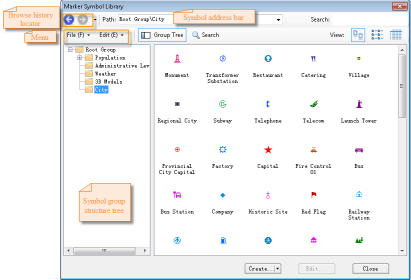
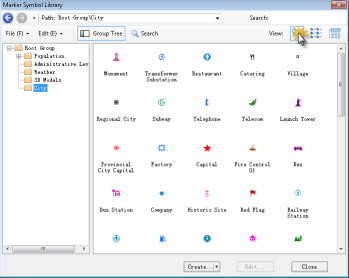
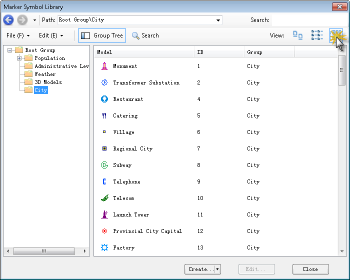
Below shows the UI of the Marker Symbol Library Manager.
- Menu: Commands for managing symbol library are provided.
- Search: Find matched symbols according to symbol name keywords or symbol ID you specify.
- View: Specify how you want symbols in the symbol pane are displayed. Three options are provided: Large Icons, List, and Details.
- Symbol Group Tree: By highlighting the Group Tree button, you can display the symbol group tree. Click a group in the symbol group tree to display all symbols of the group in the symbol pane. Similar to the structure tree in the Path dropdown list, the symbol group tree provides you with access to managing groups. Besides, the symbol group tree provides interactive operation functions. About symbol group management, please refer to Grouping of the Symbols in the Library.
- Symbol Pane: Displays all symbols in the current symbol group.
- Functional Buttons: Buttons at the bottom of the symbol library manager dialog box include Create, Edit, and Close.
Below introduces certain functions in the Marker Symbol Library Manager. For other functions, please refer to other sections of this document.
 |
| Marker Symbol Library Manager |
Search
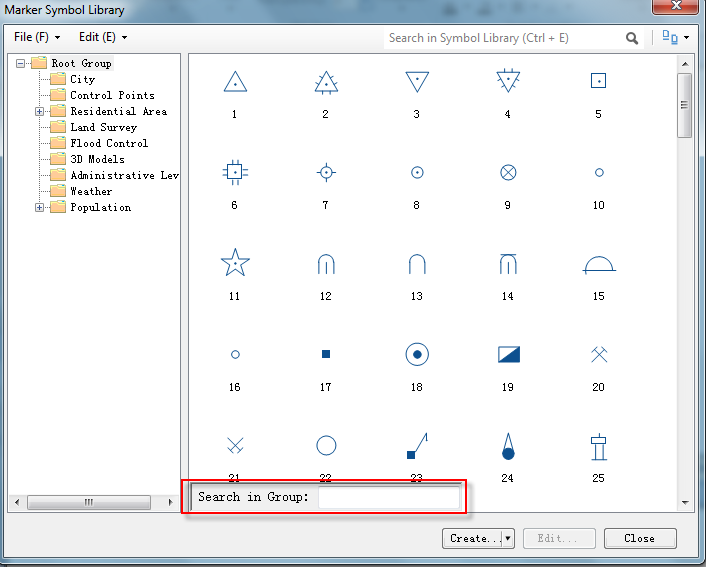
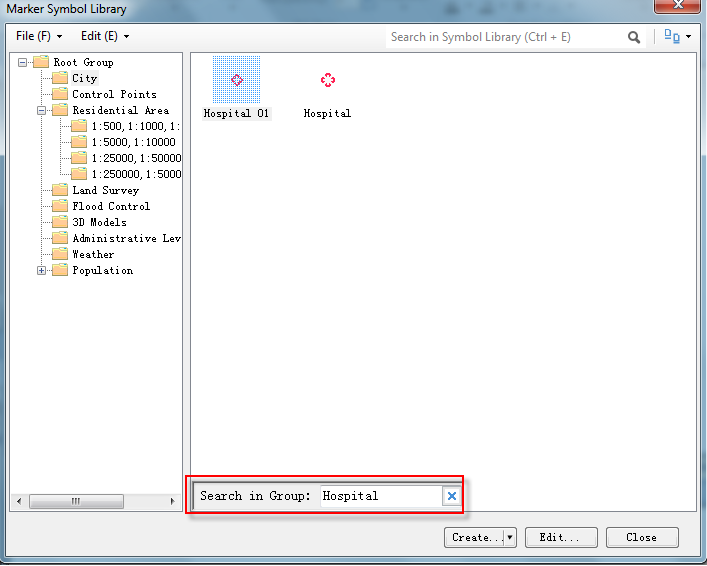
The search command finds specified symbols in the symbol pane through Ctrl + F. You can input characters or numbers in the text box, symbols, in the current group, whose names or ID numbers match the input value will be displayed in the symbol pane, with all other symbols being filtered out.
The search operation is carried out instantly with the value change in the search text box.
To display all symbols in the current group, you only need to clear the Filter text box.
 |
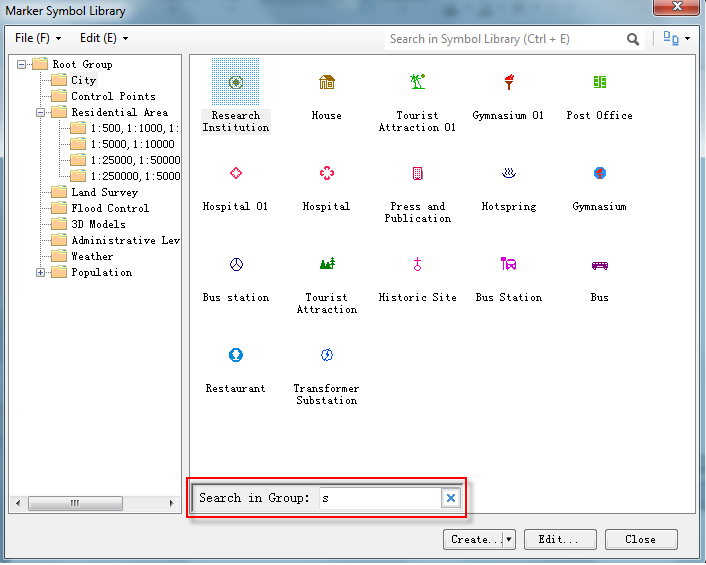
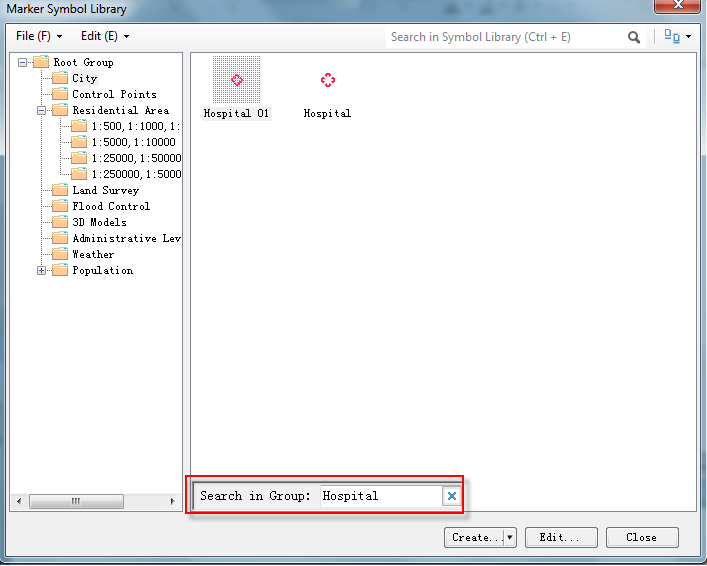
As shown below, input the "sub" and "subway" in turn, and in current symbol group, all the symbols contain "sub" are displayed. The second time, all the symbols contain "subway" are displayed.
 |
 |
Input "12" into the search box, and all the symbols conrain "12" are displayed.
 |
Search
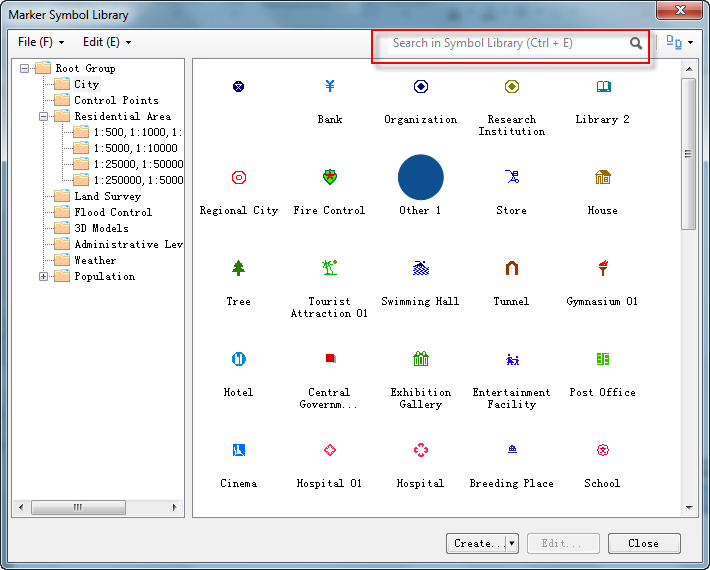
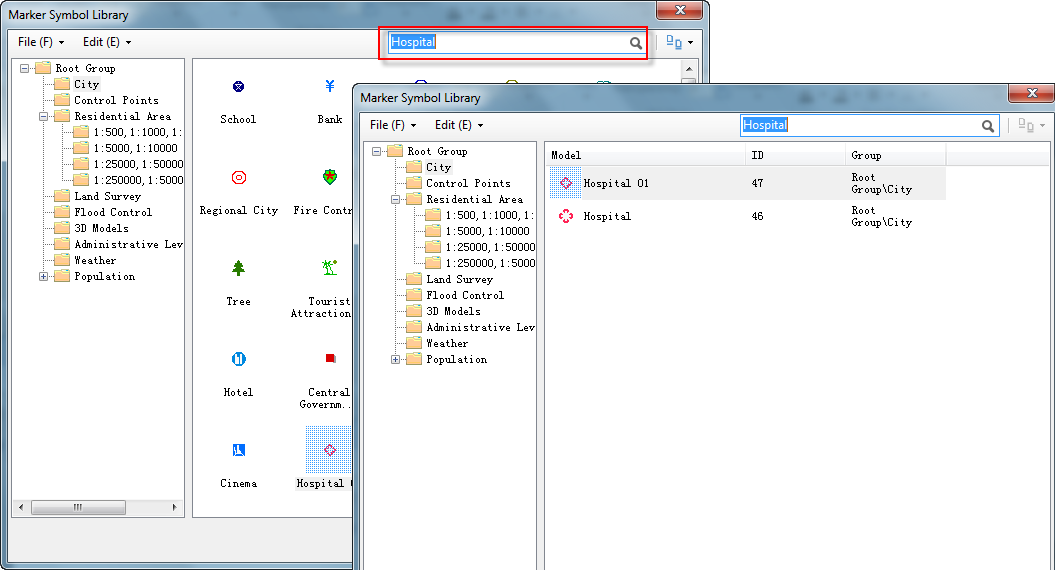
The Search command is used to find symbols satisfying certain condition from the entire symbol library. Similar to the Filter command, you need to input keywords in the text box, and then, symbols, in the current symbol library, whose names or ID numbers match the input value will be displayed in the symbol pane.
To search symbols, click the Search button to display the Search area, input the keywords, and then click the Search button at the bottom of the Search area. Symbols from the current symbol library satisfying the condition will be displayed in the symbol pane.
 |
 |
| Search | Search symbols |
View
You can display symbols in the symbol pane in Large Icons, Details, or List.
 |
 |
|
| Large Icons | List | Details |
Besides, you can click at anywhere in the symbol pane, point to View, and choose the how you want to display the symbols in the symbol pane.
 |