The District_L dataset represents the national, provincial boundaries and coastlines. It can be used to generate the administrative boundary layer for the base map. The ID field in the attribute table of the District_L dataset records the boundary type information. The values 10, 20, 30, and 11 respectively indicates the national boundary, provincial boundary, coastline, and unsettled national boundary.
 Basic Steps
- Click District_L in the Layer Manger.
- Click Thematic Mapping > Unique Value to create a unique value thematic map in default style for the layer. The newly created unique value map is added to the top of all layers in the layer manager.
- Change settings for the unique value map in the Thematic Map manager.
- Expression: ID
- Set display style: You can select a color ramp and apply it to the unique value map or customize the style for each value following the steps below.
(1) Set line symbol. Select a item in the unique values list and double click the cell
 or click
  on the toolbar to display the style settings dialog box. Specify the line symbol with which you want to draw foundries of the corresponding type. In a topographic map, different types of boundaries must meet the requirements in certain national standards. However, we can simplify the symbolization of the boundaries because here the boundary information is used as a component of the base map.
 (2) Change the label. Please refer to the table below.
(3) Change line color and width. Please refer to the table below.
Field Value (ID) Label Color (RGB) Width (0.1mm) 10 National boundary (62, 68, 62) 6 11 Unsettled national boundary (49, 52, 49) 6 20 Provincial boundary (102, 102, 102) 5 30 Coastline (0, 168, 232) 4
- After the settings, the administrative boundary layer is shown as below.
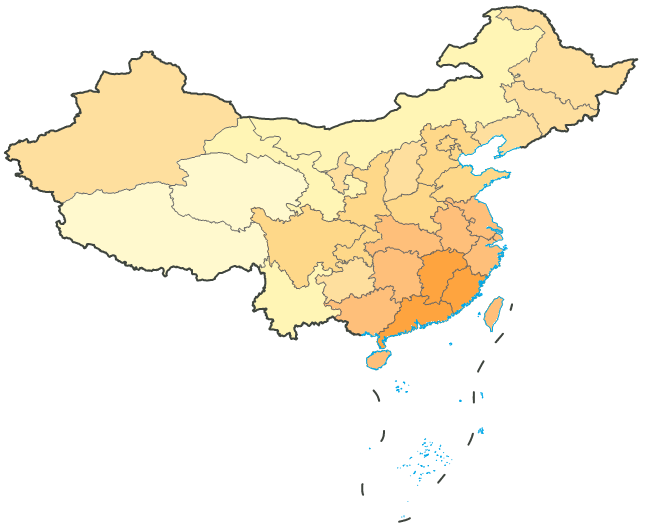
- Select the unique values map in the Layer Manger, right click to display the context menu, and click Save as Thematic Map Template. The Save as Template dialog box shows up. Specify the destination and name for the thematic map template file in XML format.
 Note
Note
DistrictUnique.xml, a thematic map template of an administrative boundary layer is provided under installation directory\SampleData\China. You can directly apply it to the District_L layer through the Load Thematic Map Template command in the context menu.