

| issue | answers |
|---|---|
| Default performance settings cause poor display | If the default performance setting is low, modify the parameters in Unreal Engine Panel -> Settings -> Engine -> Scalability -> Engine Scalability Settings to improve the quality of data rendering. 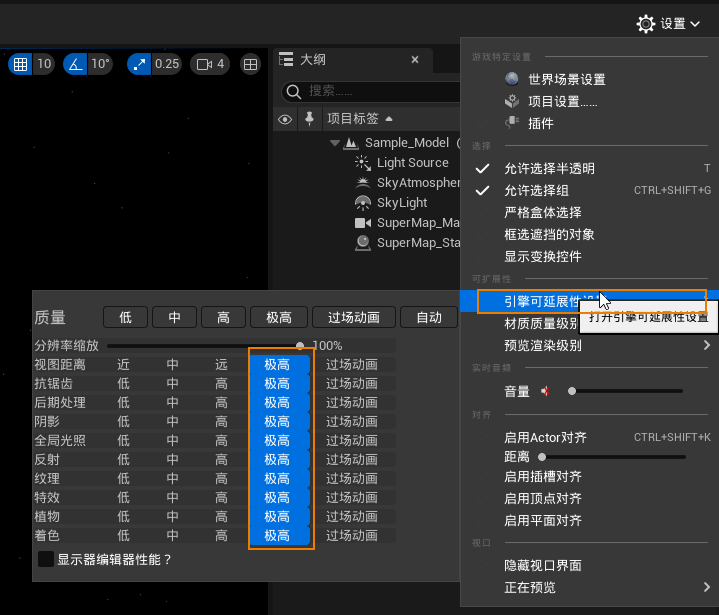
|
| How does image data receive light? |
The rendering mode of terrain and image data defaults to no light. If you want your data to receive lighting effects, click Content Browser -> Plugins -> SuperMap Content -> Materials -> UE5 -> SM_Terrain , set the shading model to default lighting, disconnect SM_SlopeSetting from the self-illuminated color, and connect to the base color. 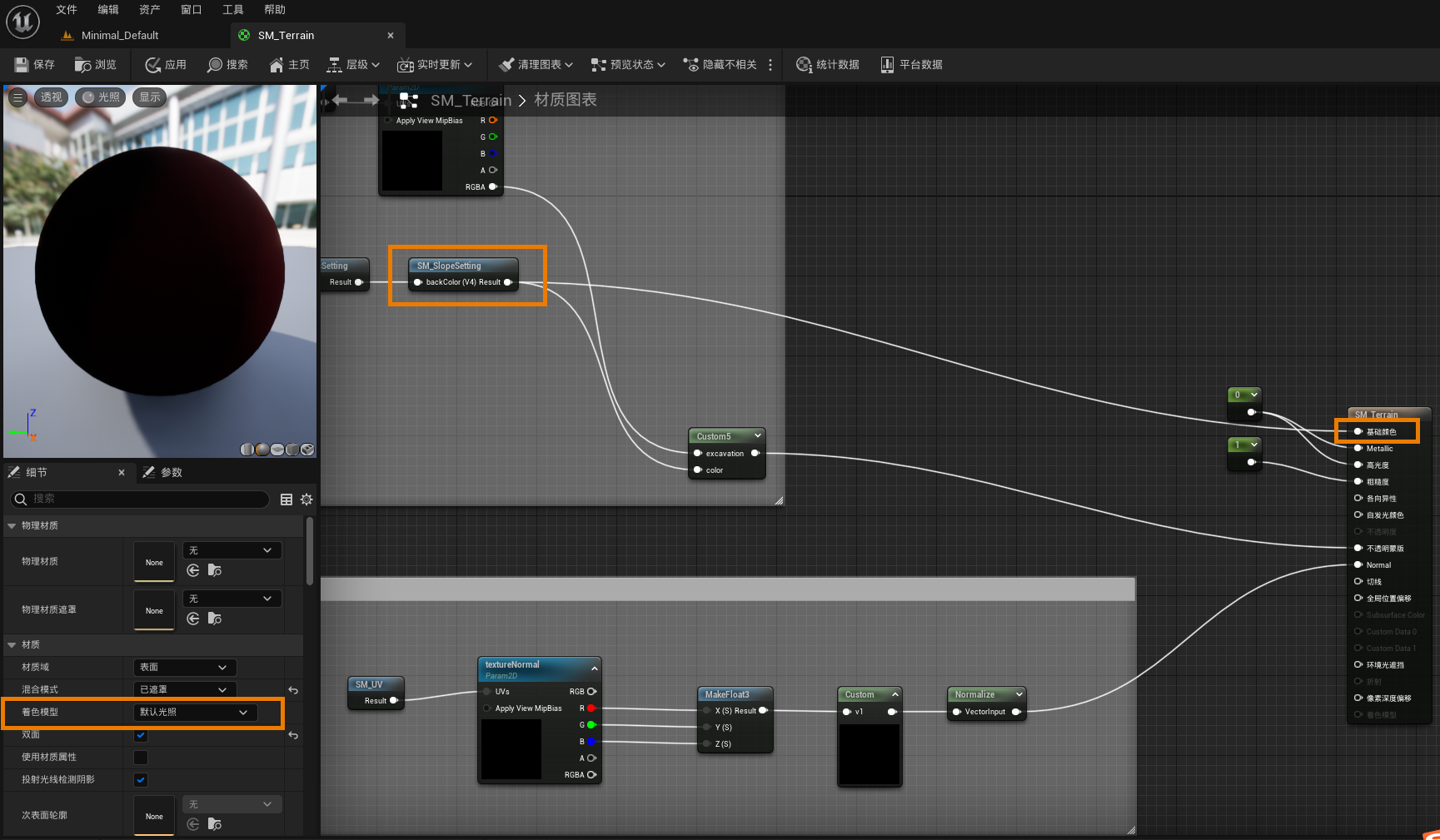
|
| Black blocks around the scene | This is because the default camera angle is 60°, and you want to set the Field of View value in the current level viewport options that are not running to 60 to keep the field of view of the plug-in and UE viewports uniform to avoid this phenomenon. |
| OSGB format oblique photography 3D model color display incorrect | In order to ensure correct display effect, it is recommended to convert oblique photography 3D model data in OSGB format into 3D model tiles (*scp) through SuperMap iDesktopX and then load them. |
| How GIS data is affected by Unreal Engine scene lighting | Without additional operation, the city fine model, oblique photography 3D model, point cloud, BIM and other data can accept the influence of lighting, adjust the light source parameters to see the corresponding effect. If you want your terrain and image data to be illuminated, follow the solution to Question 2 in this module. |
| The individual objects of the city fine model are black, and the lighting effect is different from the surrounding objects | It is necessary to check whether the problem is caused by data normals. It is recommended to regenerate the 3D model tile (*.scp) after removing normals and recalculating normals in SuperMap iDesktopX. |
| After adjusting the scene lighting, the building white model data has no shading effect | Regenerate 3D model tiles (*.scp) and reload after recalculating normals in SuperMap iDesktopX. |
| Blurred stutter appears when browsing scenes with mouse movement |
It is recommended to click Off Unreal Engine Project Settings -> Engine - Rendering -> Default Settings -> Motion Blur . Or adjust the Quantity value for Rendering Functions -> Motion Blur to 0 by opening the PostProcessVolume Properties Settings panel. 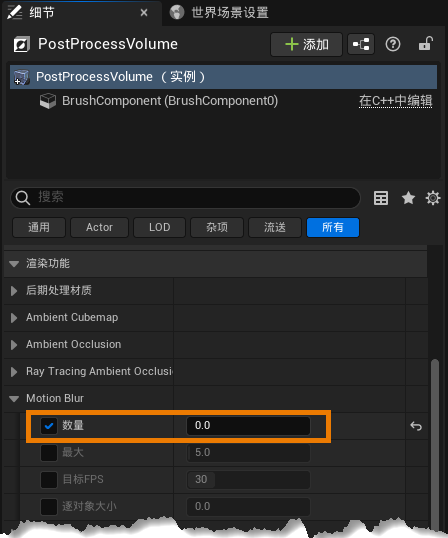
|
| Adjust the light intensity, the scene is still bright | First of all, it is necessary to rule out whether it is affected by self-illumination. Second, check whether floodlight and auto exposure are turned on in Unreal Engine Project Settings -> Engine -> Default Settings . If they are turned on, it is recommended to turn them off and try again. Finally, confirm whether PostProcessVolume exists in the outline. If it exists, confirm whether Bloom, Exposure, etc. are enabled in the attribute parameters. If they are enabled, it is recommended to close them. Through the above steps, the scene brightness is reduced as a whole. |
| Shadow effects in the scene only appear when zoomed in to the model | This situation is caused by improper setting of direct light illumination distance. It is recommended to set the value of Cascading Shadow Map -> Dynamic Shadow Distance Static Light reasonably in DirectionalLight's properties. |
| FBR model does not match 3D scene composed of tile data | This is because the size unit in Unreal Engine is cm, which may not be consistent with the size unit of FBX model. To ensure proper scaling, it is recommended that you change the size unit to CM when exporting FBX models from software such as 3d Max to ensure that the FBX model matches the 3D tile data. |
| Browse Caton in the newly created scene | This condition may be due to the influence of light. It is recommended that Outline-> DirectionalLight and SkyLight -> Transform-> Mobility be set to movable . |
| The reflection effect of the water material in Unreal Engine5 is not correct at a distance, and it appears black | This condition is caused by improper reflection settings. It is recommended that Unreal Engine's Project Settings-> Engine-> Rendering-> Reflection-> Reflection Method be set to Screen Space . |
| Flicker or data suddenly disappears after data loading | All materials of plug-ins can be selected through filters and saved. In case of prompt error, you can open them all and save them. 。 |
|
|
Language

|
Version